Publish, share and follow activity
This part is better understood when three actions are separated: publish, share and notify. That is where the platform stops being just a record of results and begins to move the life of the tournament, the club and the players.
Player
Publish, follow profiles, request or respond to friends and attend to notifications from your active sports identity.
Organization
Build your own network, follow players or organizations and communicate events and results with an institutional voice.
Administrator
You can relate from your administrative profile, but you must distinguish that identity from the organization or player you represent.
Follow a profile and manage friendships
This process applies the conceptual difference between unilateral following and bilateral friendship. The actions are carried out on the wall of the visited profile and always take the active profile as their origin.
Check active identity
- Open the profile selector and confirm the identity from which you want to connect.
- If you have user, player, organization or administrator profiles, consciously choose one: their connections do not mix.
- Open Profiles, switch to scope All and use search, filters or social relevance order to locate the desired identity.
- Enter the wall or view detail. You cannot follow each other or request friendship from the same active profile.
Follow or unfollow
- In the wall header select Follow. The relationship is created immediately and does not require confirmation.
- Checks that the action changes to Following and that the follower counter of the visited profile increases.
- Open your own wall, go to Connections → Following and verify that the profile appears in the list.
- To end the relationship, return to the profile wall and select Following or the unfollow action.
Send a friend request
- On the other profile's wall select Request friendship.
- The action changes to Request sent and the recipient receives a social notification.
- While it is still pending, you can open your wall, go to Connections → Friend Requests → Sent and cancel it.
- Sending a request does not create a friendship or require you to follow the profile.
The Figure Community 1 simultaneously displays an active track and a pending request, demonstrating that they are independent relationships.
Reply, cancel or delete a friendship
Request received
The owner opens his notification or Connections → Friend Requests → Received. You can accept or reject. Only the recipient profile can respond.
Request sent
The profile that initiated the relationship sees the status Waiting for a response and can cancel while it is still pending.
Friendship accepted
Both profiles appear in their respective friends lists. Anyone can delete the friendship and the system removes the reciprocal relationship.
Request rejected
It is no longer pending, the person who sent it is informed and it does not appear as an active friendship.
Own requests within Connections
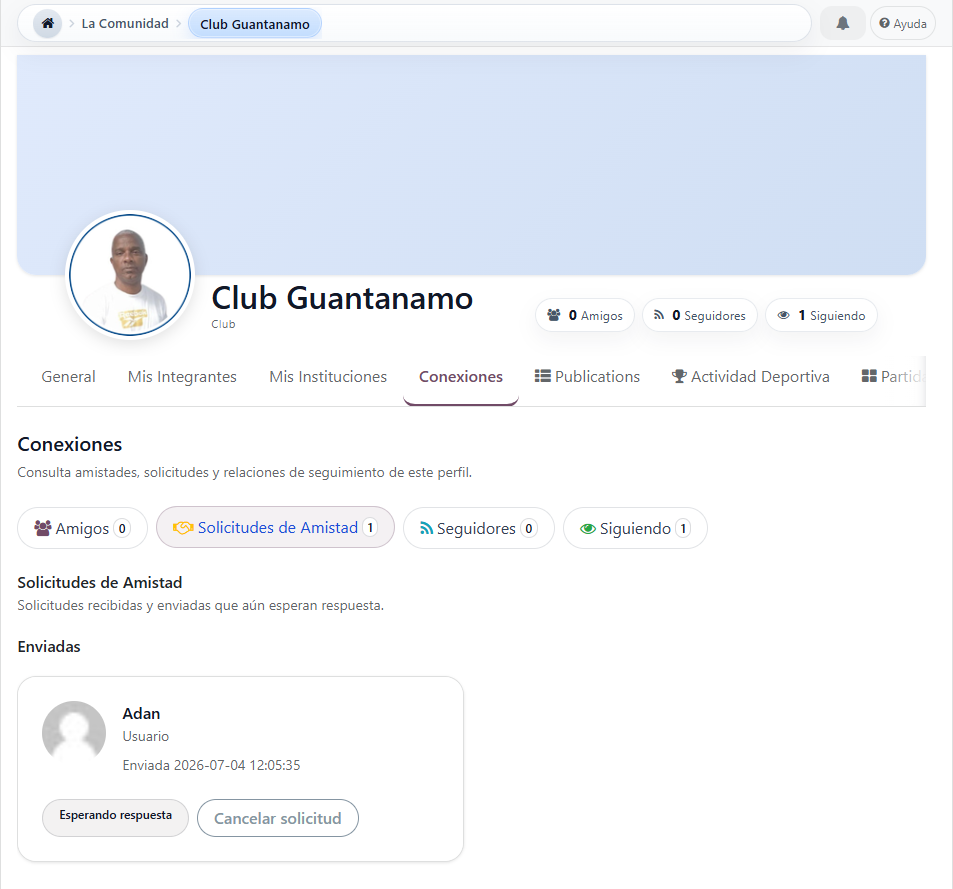
In the request review step use the Figure Community Process 1 to locate the tabs, status and available action. An external visitor does not see this private information.
Review friends, followers and followed profiles
- Open your own wall and select Connections.
- Use Friends to review accepted relationships and remove a friendship if applicable.
- Use Followers to find out which identities follow your activity.
- Use Following to return to the profiles whose activity you decided to follow.
- Select any card to open that identity's wall and review or change the relationship.
Profiles followed by the active identity
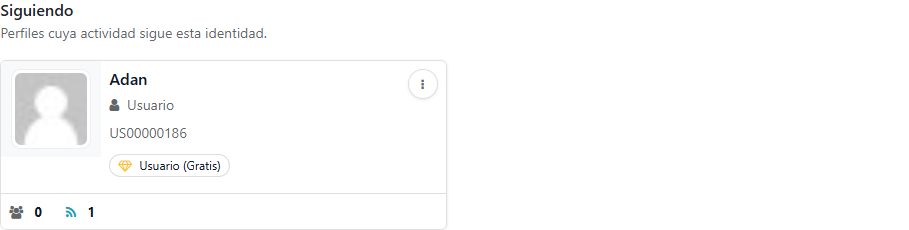
The Figure Community Process 2 supports the last step: from each card you can return to the profile wall followed. To understand why this list is not the same as Friends, go back to Profile Social Connections.
Publishing is not sharing
- Post creates public presence and visible conversation.
- Share sends a specific reference to specific profiles.
- Notify active response or attention to something specific.
Competitive integration
- Tournament, round, match, session and profile can enter social circulation.
- That extends the life of the event beyond the pure result.
- Reduces the need to coordinate everything outside the platform.
Reading and tracking
- It is important to distinguish community exploration from personal monitoring.
- Filters by author, profile or type of content greatly change the usefulness of the community space.
- Reactions, comments and images reinforce retention and social memory.
What is it for a player
It is used to follow activity, react, comment, maintain contact with tournaments and not depend only on the scoreboard as a memory of your presence on the platform.
What is it for an organization
It serves to convert tournaments, rankings, results and institutional relations into public visibility, monitoring and community around the event.
Posts, shares and notifications as a single stream
Publish
It serves to highlight activity and give visibility to profiles, tournaments, matches or sessions within the platform.
Share
It is used to bring a specific reference to specific people without necessarily converting it into wall content. Reduces the need to coordinate externally.
Notify
It is used to alert, remind or move an action. It makes the platform feel more alive and avoids depending only on the user going to look for the information.
Public feed and personal follow
Exploring the general flow of the community is not the same as revisiting the posts themselves. That difference helps separate public discovery from personal tracking.
Useful Automations
Some actions related to matches or sessions can boost circulation and notices more quickly, so that important activity reaches its intended audience sooner.