Use lists, filters and views
In this section the idea is not only to understand the interface, but to use it well. Here we explain how to read lists, how to take advantage of filters, what to expect from administrative bars and how to work with the same logic on desktop, mobile and navigation menus.
Query
The player or visitor uses cards, search, filters and order to find the entity they need.
Management
The organization selects records, toggles columns, and applies bulk actions when managing sets.
Operation
The administrator uses list, inline editing, and operating bars to work more densely and quickly.
Listings
Card view
- It is convenient to orient yourself, recognize states and understand the general context.
- It is ideal when the organizer does not yet need to compare many fields at once.
- On mobile it is usually the friendliest reading for players, clubs and administrators.
List View
- It is the natural view for comparing, selecting and managing.
- There multiple selection, online editing and mass actions gain more value.
- When a block is manageable, the list is usually the place where its operational power is most noticeable.
Three bars, three responsibilities
- Quick filters change stage or scope and can incorporate compact search.
- The smart bar brings together counters, order, columns, mode and advanced filters.
- The administrative bar adds selection, inline editing, and bulk actions when permissions exist.
In the manageable lists, the contextual menu concentrates the logically grouped actions. If the horizontal space allows it, some actions that are especially relevant to the moment can remain visible, but without breaking the general hierarchy of the bar.
Use the bars in the list in practice
This process applies the contract explained in The three bars of a functional listing. The sequence avoids opening complex filters or activating administration before understanding which set is visible.
- Choose the quick filter. In events it starts with In Progress, Upcoming or Completed. In other entities select the available scope.
- Search by text if sufficient. The compact box of the first bar preserves the current context.
- Reads the counters. The smart bar confirms the size and relevant indicators of the resulting set.
- Defines the presentation. Selects the main order, optional columns and cards or list mode.
- Open Filters if you need precision. Combine relationship with the profile, state, organization, circuit, country, period or other fields and press Apply filters.
- Enter the administrative bar only to operate. In list, select records, edit online or apply mass actions according to your permissions.
- Preserves the context. When changing views, sorting or loading more results, verify that filters and selection from the same list are maintained.
The Figure Interface 1 shows this complete sequence from top to bottom.
Work with quick filters and search
Immediate change
Use the first bar to switch between predefined universes. It is a quick navigation, not an advanced query, so it is applied when selecting the option.
Relationship with my profile
If you are only searching for events where you participated, organized, or managed, open Filters and select the explicit relationship. Don't assume that In Progress means “my events in progress.”
Use the smart bar
- Total and counters: checks the filtered universe; they do not represent only the visible rows of the first block.
- Order: selects the main functional criterion. If you then click a table header, you apply a temporal scan by column.
- Columns: activates only the necessary data. Fixed columns appear protected and optional columns are remembered by context.
- Cards/List: cards promote reading and navigation; the list enables comparison, selection and operation.
- Filters: opens the advanced panel without losing the order or current view mode.
Compose advanced filters
- Select Filters in the smart bar.
- Combine the necessary criteria. Changing each control does not reload the list immediately.
- Use Apply filters in the panel header to run the full query.
- Use Clear filters to remove the advanced composition and return to the base state of the listing.
Advanced Filters Panel
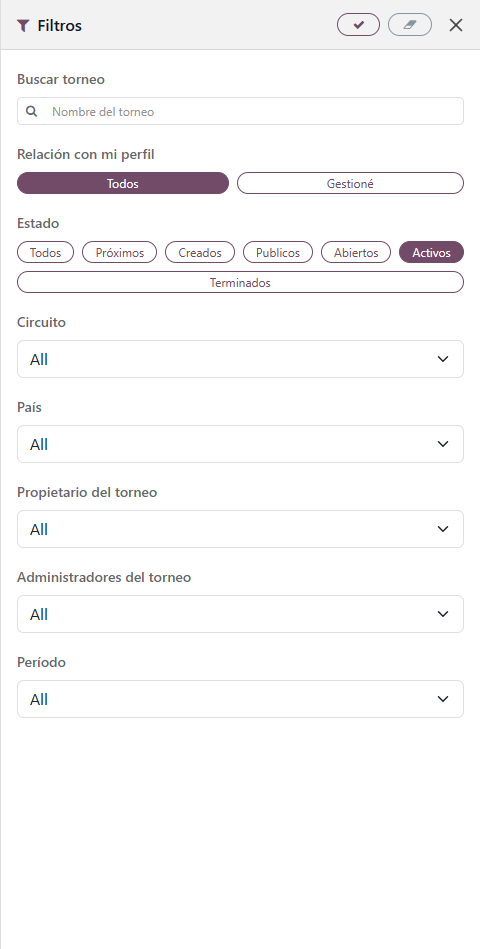
Use the Figure Process Interface 1 to identify the Apply Filters and Clear Filters header controls, as well as the Relationship to My Profile separation.
Select, edit, and apply bulk actions
- Change to List. Card view does not offer multiple selection or inline editing.
- Marks the necessary rows or uses Mark all when the action must cover the loaded set.
- Checks the selected counter. The selection should be preserved when sorting or incorporating more results within the same context.
- Run a visible bulk action or open More actions. The buttons remain disabled if there is no valid selection.
- To modify supported fields, select Edit Listing, make the changes, and use Save Changes. Exit editing returns the table to reading.
Filters
The best way to work with a broad list is not to go through it completely over and over again, but to turn it into a limited and meaningful view. That's what filters are for.
Filters that build context
Organization, tournament, round, session, type, state, country, format or relationship are examples of filters that really change the reading of the screen. They don't just remove rows: they redefine the workspace.
Filters that help you decide
In real operation, the filters serve to answer specific questions: which tables are still open, which invitations remain to be attended to, which members are active or which matches deserve review.
Structural filters
Define the base entity: for example, the tournament that is being administered or the organization to which the listing belongs.
Operational filters
They focus on state, activity, visibility, phase or administrative situation. They are the most important when the event is live.
Fine Read Filters
They are used for specific queries without altering the general structure too much. For example, search for a specific profile or review a specific country.
When the system preserves filters, order, and views well between navigations, the experience feels much more stable. This is important in tournaments, but also in profiles, rankings and community.
In the current version of the product, a clearer criterion was consolidated: quick filters are applied immediately because they represent predictable destinations; the advanced panel waits for the user to finish combining controls and press Apply Filters.
Order and columns
Many Smartdomino listings distinguish between the official reading of a block and the exploratory reading that the user needs at that moment.
Main order
- It is the official or natural reference of the list.
- Helps preserve the sense of space for all users.
- It is advisable to respect this when sharing a reading with other administrators, referees or support staff.
Exploratory order
- Allows you to rearrange to check something specific.
- It is useful for research without confusing this analysis with the official criteria.
- Reduce errors when multiple people look at the same block for different purposes.
Visible columns
The list view can display additional columns when the job calls for greater density. This is especially valuable in lists of competitors, matches, requests or members.
Online editing
When supported by a list, inline editing appears as an explicit mode and not as an accidental modification. This better protects operation and reduces inadvertent changes.
Expanded view and rhythm
User experience improves when screens don't try to shout everything at once. Smartdomino tries to distribute information, actions and visual aids in recognizable blocks.
Panel surfaces
Operational and administrative bars should look like work panels: soft background, discrete border, light shadow, and sufficient separation from the content they control.
Contextual help
States, next actions, and responsive options can offer hover help to explain what each element does without reloading the main view.
Useful empty states
An empty list should not sound the same when there is actually no data as it does when the screen is filtered. A good empty state guides and suggests the next step.
Consistency between menus
The side menu, the central menu and the mobile version coincide in entities and titles. The global stages, scope and relationship with the profile are resolved within the list.
Visual rhythm
When a screen combines identity, reading and administration, it is important that the user feels clear pauses between blocks. This separation makes work more pleasant and less tiring.