Create and track a support request
Support handles particular cases. Their standings, statuses and privacy rules are explained in Support and requests.
Create a request
- Login and check the active profile from which you encountered the problem.
- Open Support and select New Request.
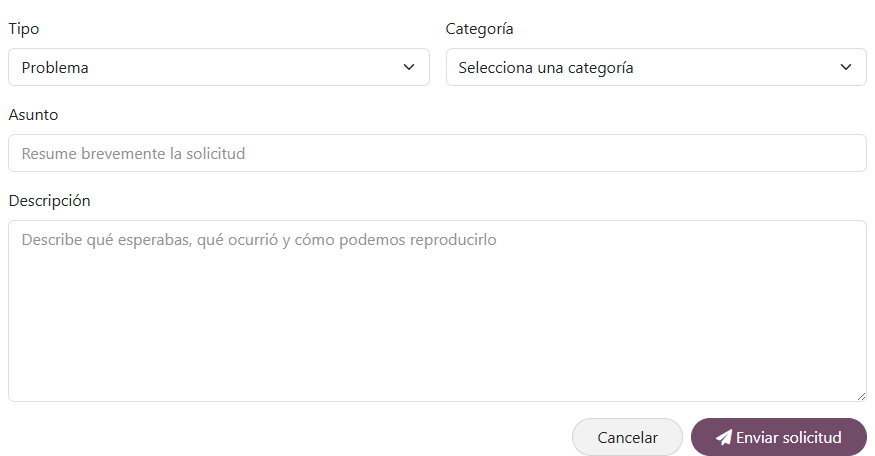
- Choose the type: Problem, Suggestion, Opinion or Other.
- Select the category that best represents the affected screen or function.
- Enter a subject of at least five characters.
- Describe with at least ten characters what you expected, what happened and how it can be reproduced.
- Submit the request. The platform assigns a reference as
DOM-SUP-000001and opens the detail.
New application form
Private and traceable detail
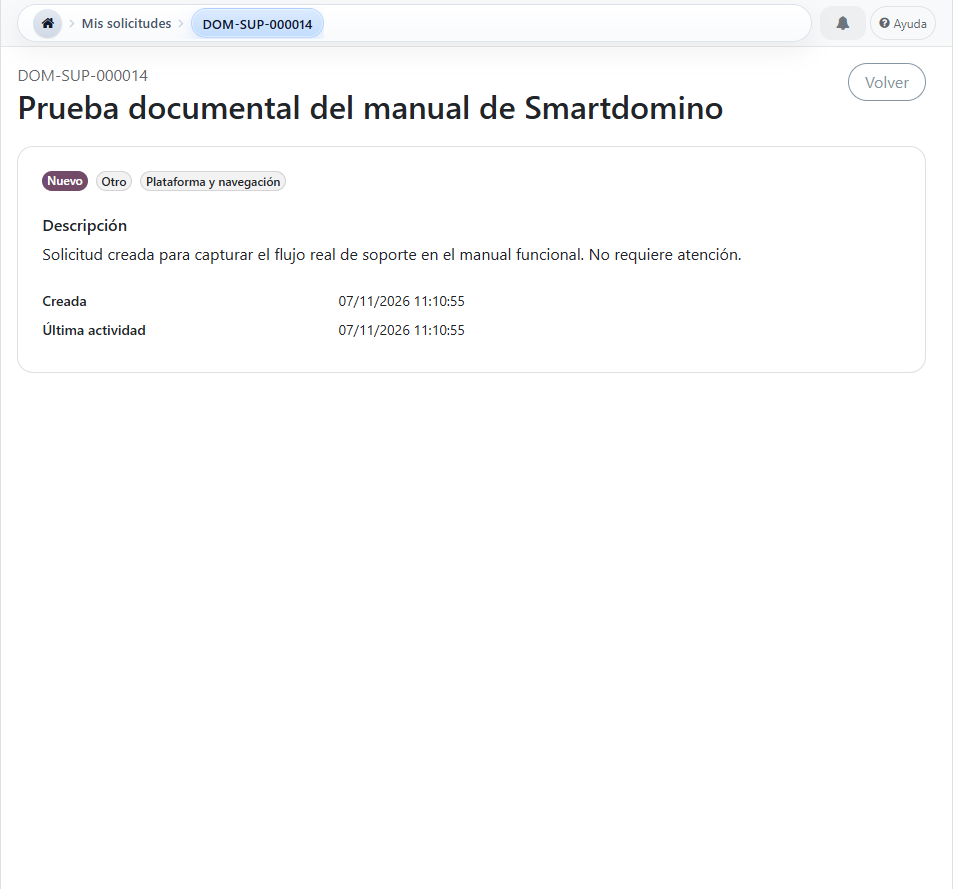
The Support Figure 1 shows the data that prepares the case; Support Figure 2 confirms the result after sending.
What should be included
- Exact display and action.
- Expected result and observed result.
- State of the tournament, session, match or profile involved.
- Steps to repeat the behavior.
What should not be included
- Passwords, verification codes or tokens.
- Cookies or authentication headers.
- Personal data of third parties that are not necessary.
- Information unrelated to the case.
Check my requests
- Open Support → My requests.
- Choose Open, Awaiting a response, Resolved or All.
- Search by reference or subject if you need to locate a specific case.
- Toggles between Cards and List without changing the queried set.
- Open the request to review reference, subject, status, type, category, description, creation date and last activity.
List of own requests

Current limitation of the website: the detail allows you to consult the evolution, but it still does not include user response, attachments, closing or reopening from that screen. If the status indicates Waiting for user, the response channel must be coordinated with the support team until website communication is implemented.
Process a request as an agent
- In the Support backend open Requests; the initial filter shows open cases.
- Search or group by reference, applicant, agent, category, state or type.
- Review description, profile and context of origin; adjust category, priority or agent where appropriate.
- Use Review to move a new case to In Review and Start to start work.
- Record the first response only once when the first contact occurs.
- Use Wait user if information is foul and Resume when analysis can continue.
- Select Resolve when you have a solution and Close after confirming formal closure.
Security: an average person only sees your requests. The agent can manage the set, but must not copy descriptions sensitive to issues, notifications, or public surfaces.