Access, account and profile
This process explains how a person enters the platform, how they go from account to profile and from what real identity they begin to operate. It is no longer just about understanding concepts, but about reading the practical access and activation sequence.
User
Register the account, protect your credentials, create the profiles you need, and check which one is active before taking action.
Organization
Receive requests or invite compatible profiles when the identity must be institutionally linked.
Administration
Defines types, plans and permissions; It intervenes only when capacity, access or consistency needs to be resolved.
Account in actual operation
- Manage email, contact, language, avatar and personal preferences.
- It is kept separate from the visible or sporting identity.
- Changing password or security affects active session and personal account maintenance.
Memberships and membership
- The request or invitation is not equivalent to consolidated membership.
- Acceptance modifies context, relationships, and, in some cases, operational access.
- The members tab becomes functionally important for active organizations.
Permissions, plans and profiles
- The profile change is not decorative: it changes the visible options and the type of experience available.
- Plans help package capabilities and conditions of use.
- This layer helps understand why the experience changes depending on the type of participation.
My Members and My Organizations
- My Members makes sense especially in institutional profiles or in profiles whose plan allows them to have members.
- My Organizations is used to read which organizations an identity belongs to, even if it is not institutional.
- Separating both tabs avoids confusing who belongs to whom.
Plan capacity and member quota
- The plan may limit how many active members a profile can have.
- This quota does not prevent you from managing existing relationships; prevents further expansion of the base above the limit.
- The visible reading of the quota should serve to better organize the community, not to surprise those who manage it.
Onboarding operational flow
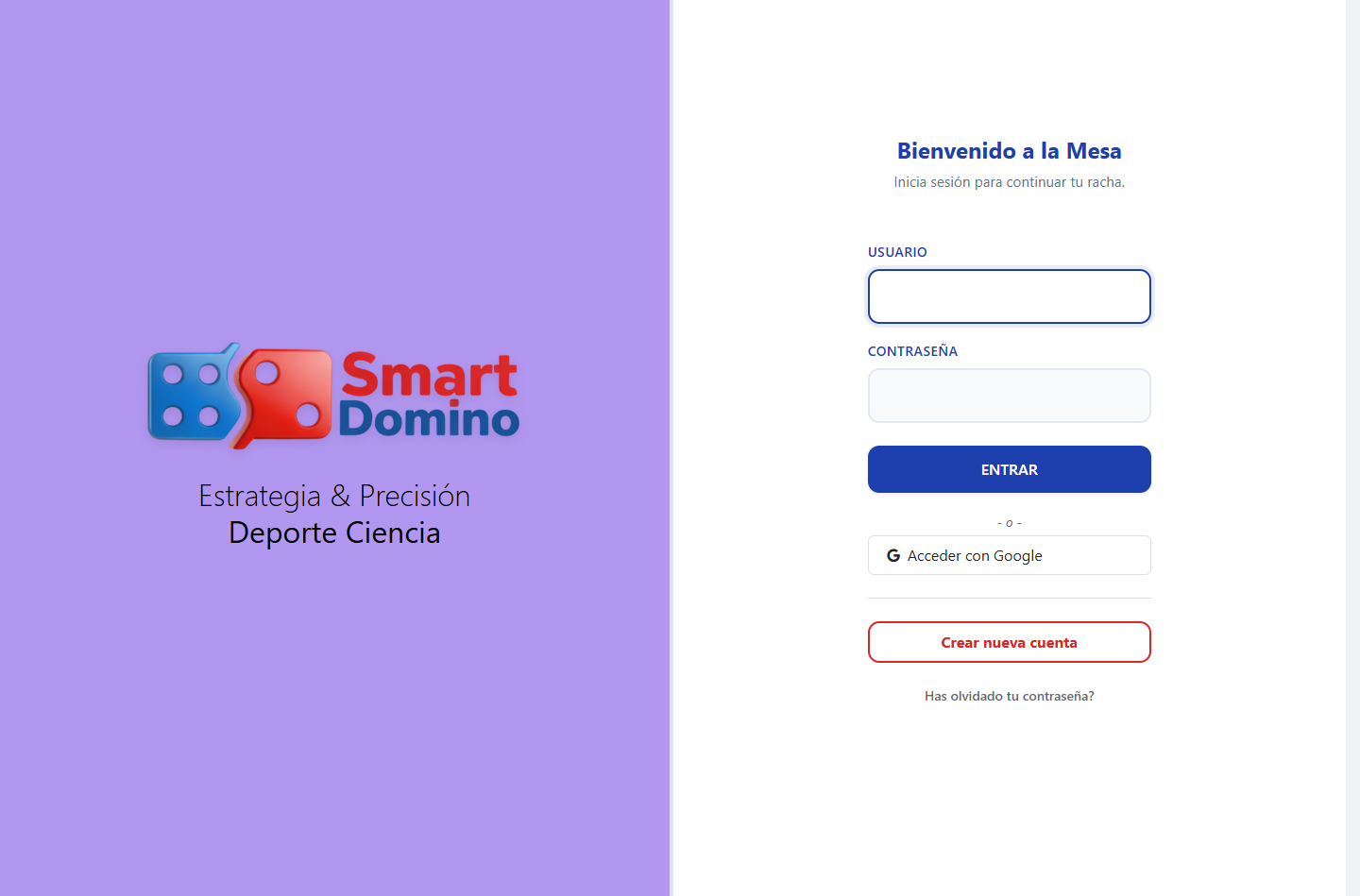
Registration and login
- The registry creates the access account, not the operational identity.
- The login returns the person to the portal and from there it is resolved whether to continue with an existing profile or if they should create a new one.
- Login experience should be understood as account first, profile later.
Profile creation
- The name of the new profile can start from the account name for faster entry.
- The Profile Type selector organizes the options by families: sports, institutional and management.
- Until a type is selected, the Plan selector should remain empty.
- When a plan is chosen, the view should show its benefits and a clear summary of what that plan offers to that profile.
Check email and complete login
- Register the account with name, email and password.
- The platform creates the account, generates a one-time link and a six-digit numerical code, and sends them to the indicated email when the mail server is available.
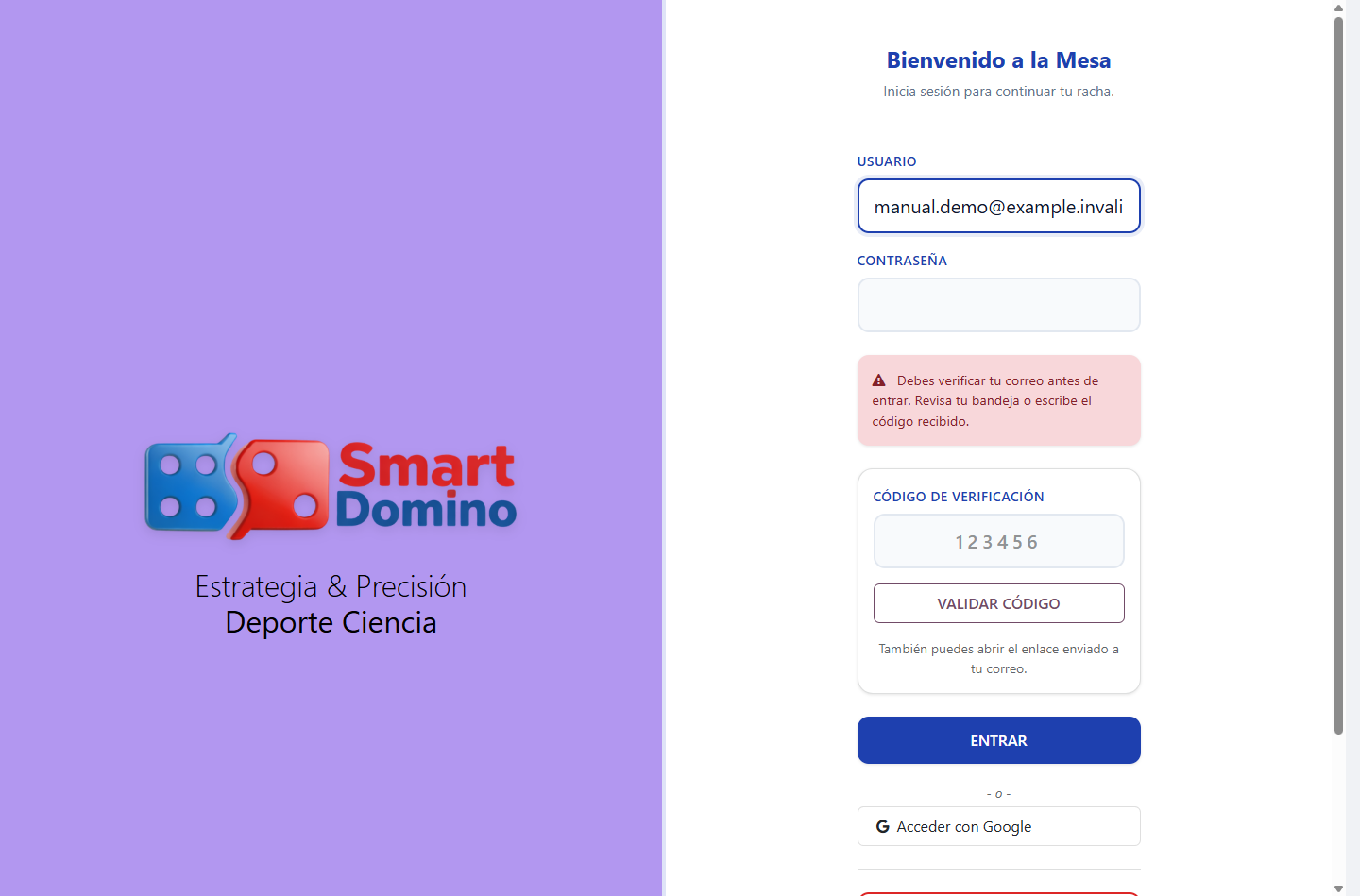
- If you try to enter before confirming, the session is closed and the access panel displays Verification code.
- Open the verification message sent to the indicated email.
- Select the verification link or copy the six-digit numeric code.
- If you use the code, enter it in the login verification panel within fifteen minutes.
- When the verification is correct, the platform invalidates the link and code, confirms the result and returns you to the login.
- Enter with the already verified email and your password.
- The platform will open the profile creation if you do not yet have an active identity; if you already have it, it will resolve the corresponding operational destination.
The visual sequence goes from Figure Access 1 to Figure Access 4. The code panel is presented within the same access screen so that the person does not have to learn another environment.
If the code fails
- Check that it corresponds to the email used to register the account.
- An expired code or one with five failed attempts must be regenerated in a new access attempt.
- A link already used cannot be verified a second time.
If you use an external provider
- Select Google or Facebook when the button appears enabled in the access.
- The provider opens its own screen; There you authenticate the external account and authorize the requested data.
- The provider returns the result to Smartdomino using the OAuth callback.
- Smartdomino accepts email linking only when the provider confirms that it has been verified and a single supported local account exists.
- If the external identity is already linked, update access for that account; does not silently replace another existing provider.
Enter with Google or Facebook
- Open Login and select the available provider below the tab.
- Completes authentication and consent within the provider site; Smartdomino does not receive your external password.
- The provider returns an identity and the verification status of the mail.
- If a compatible and unique local account already exists, the platform links it and avoids creating a duplicate.
- If it does not exist, the OAuth flow can create the account based on the provider and platform rules.
- At the end, Smartdomino resolves the same destination as in traditional access: new profile, active match or Home.
Update data, preferences and password
- Open My account.
- In General updates name, email, telephone numbers, language, avatar and sound preference.
- En Location complete country, city, zip code and addresses if applicable.
- In Security write the current password, the new password and its confirmation.
- Select Save changes.
- If you changed the language, the platform keeps the tab and reloads the routes with the chosen language.
- If you changed the password, the session is closed and you must log in again with the new credential.
General data and preferences
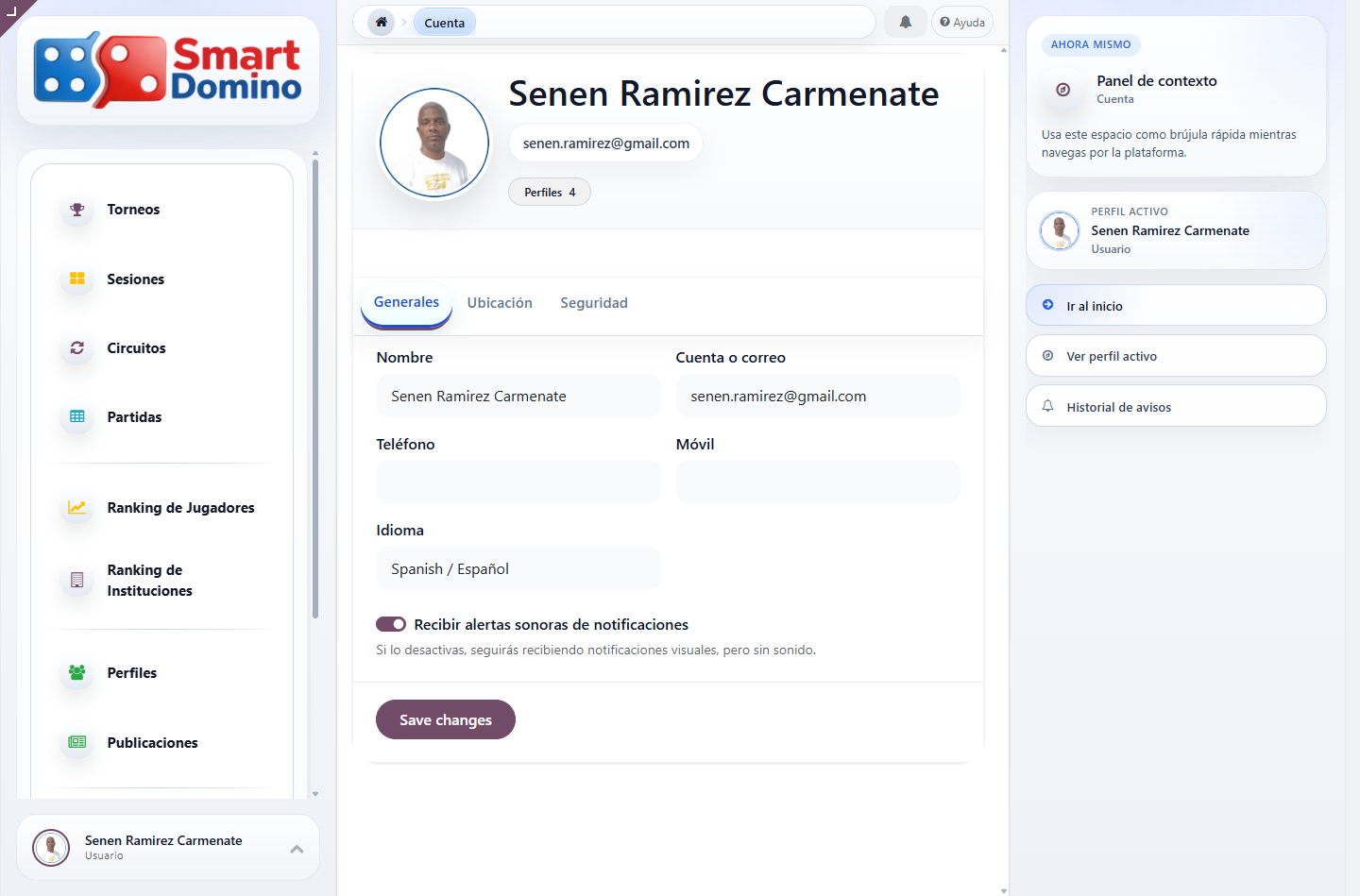
Password change
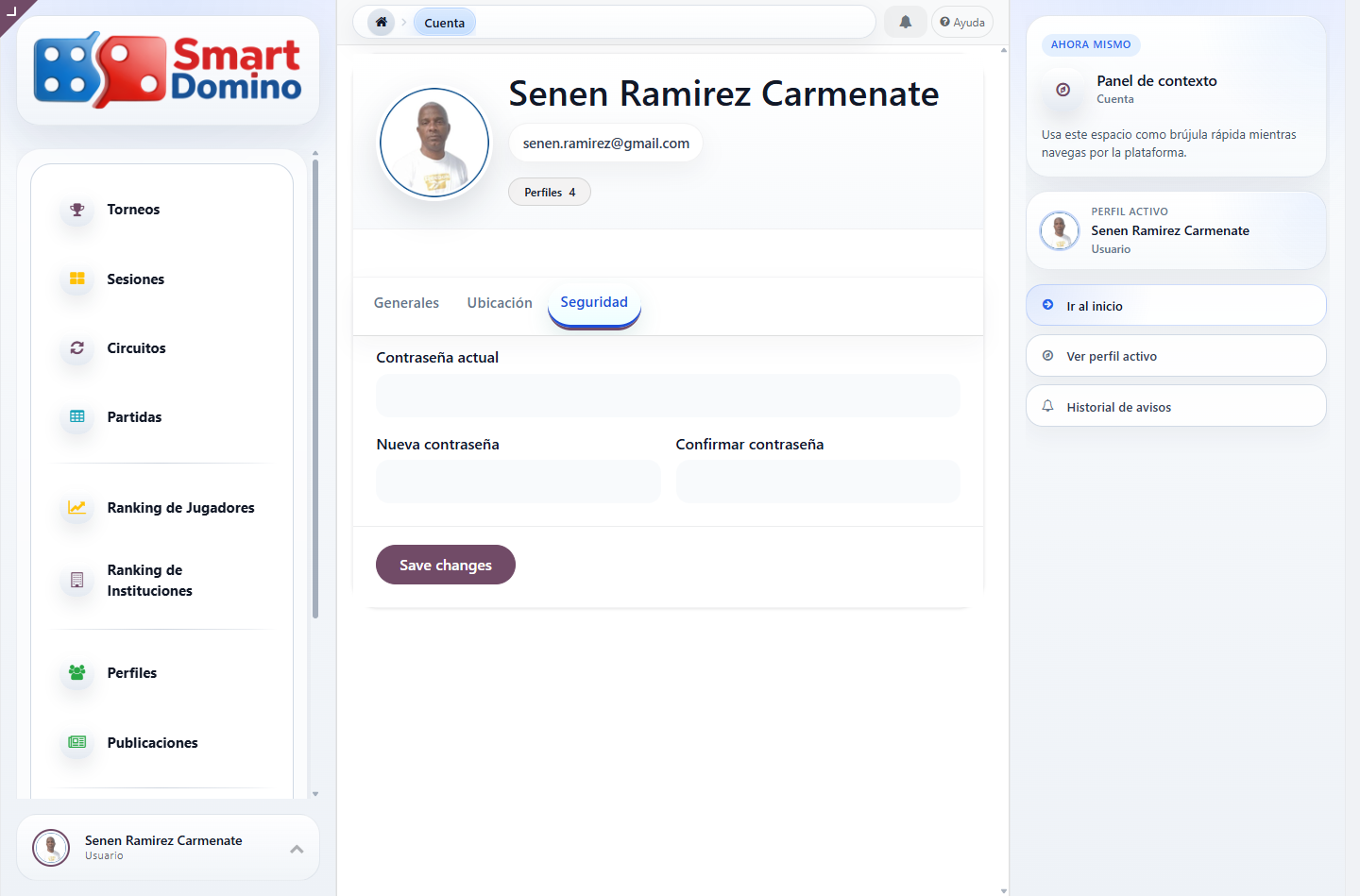
See Figure Account 1 for data and preferences, and Figure Account 2 for the credential change.
Account Registration
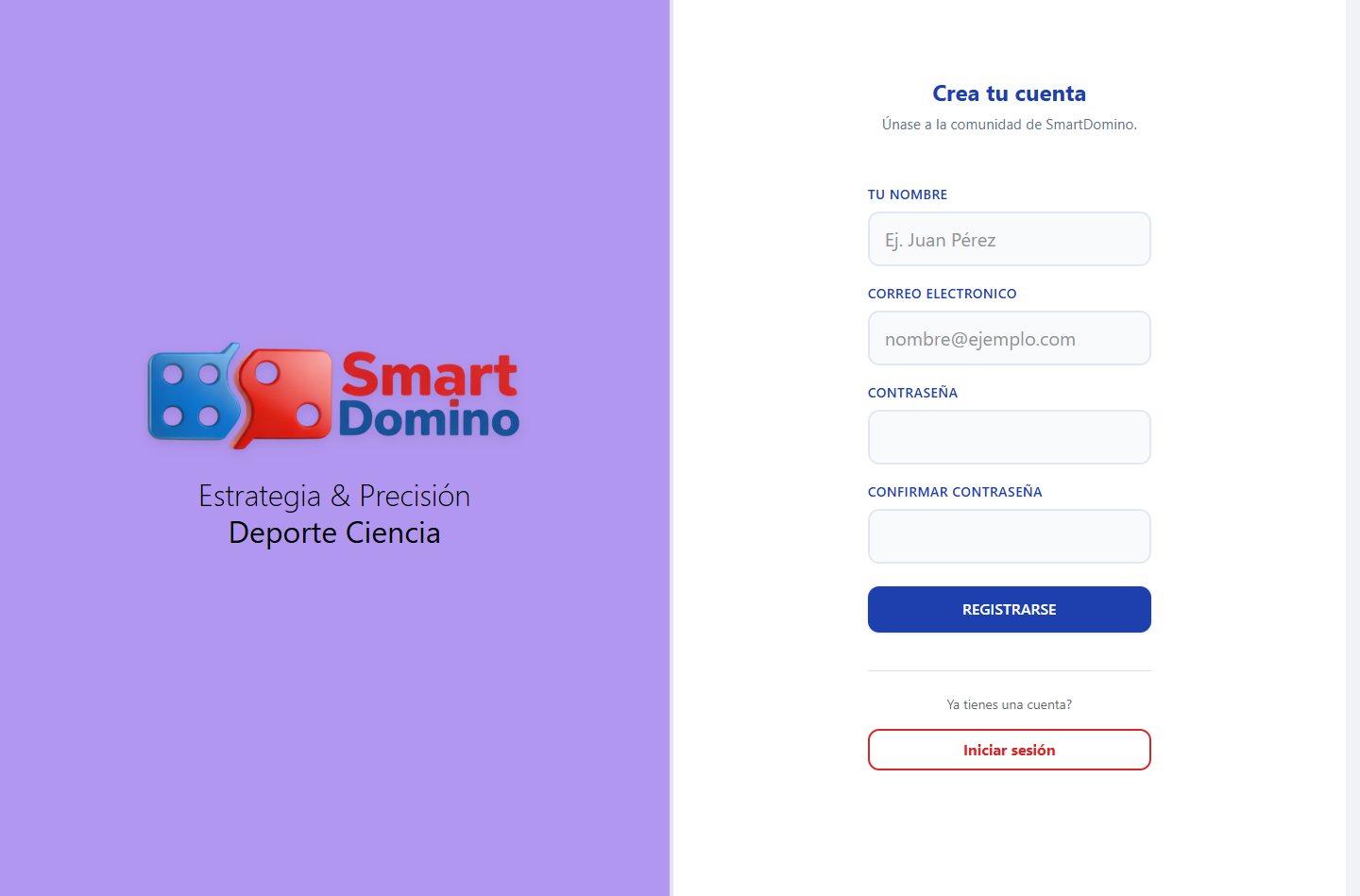
Login and external provider
Account pending verification
Confirmed email
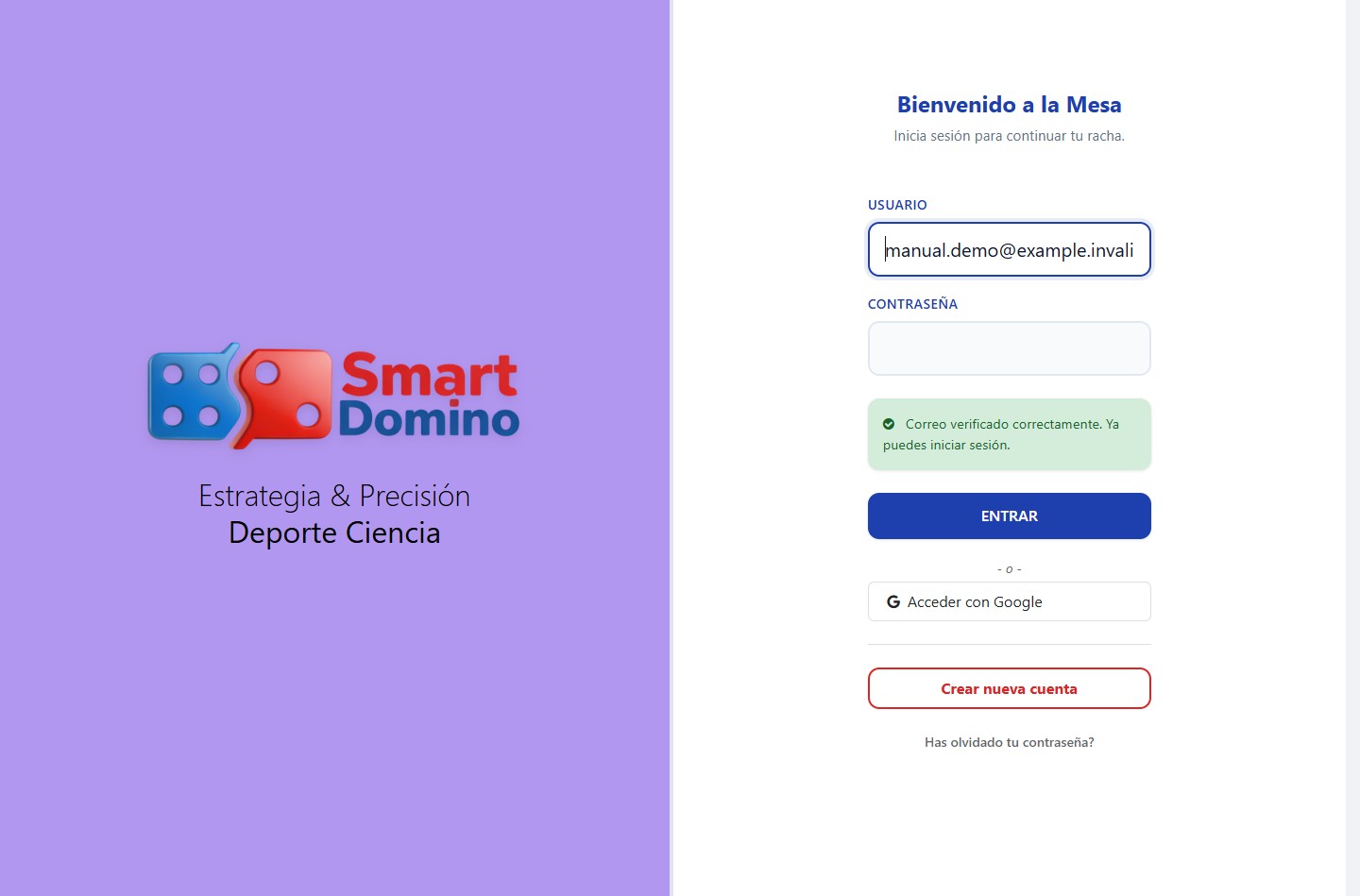
Figure 3. Modal new profile
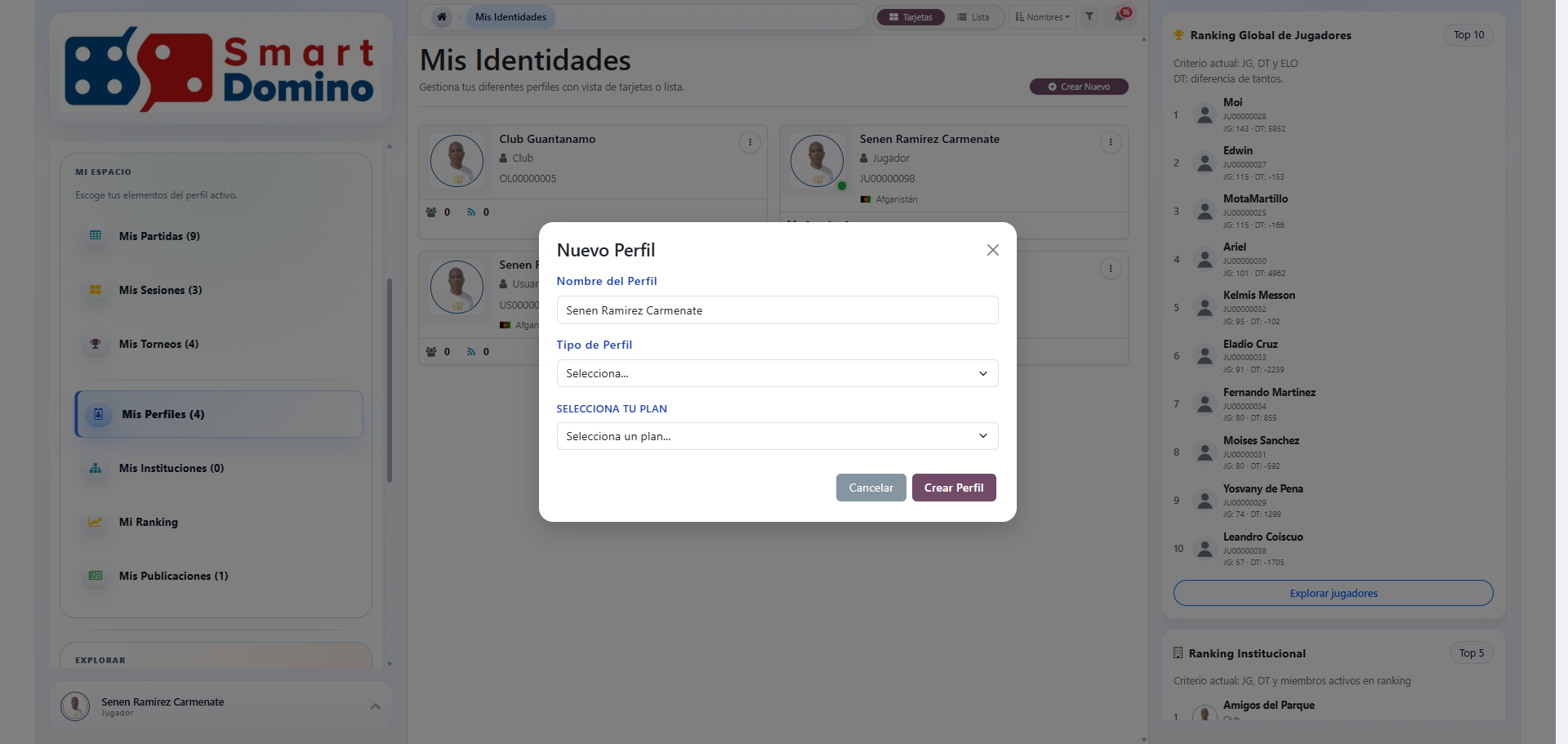
Figure 4. Selected profile type
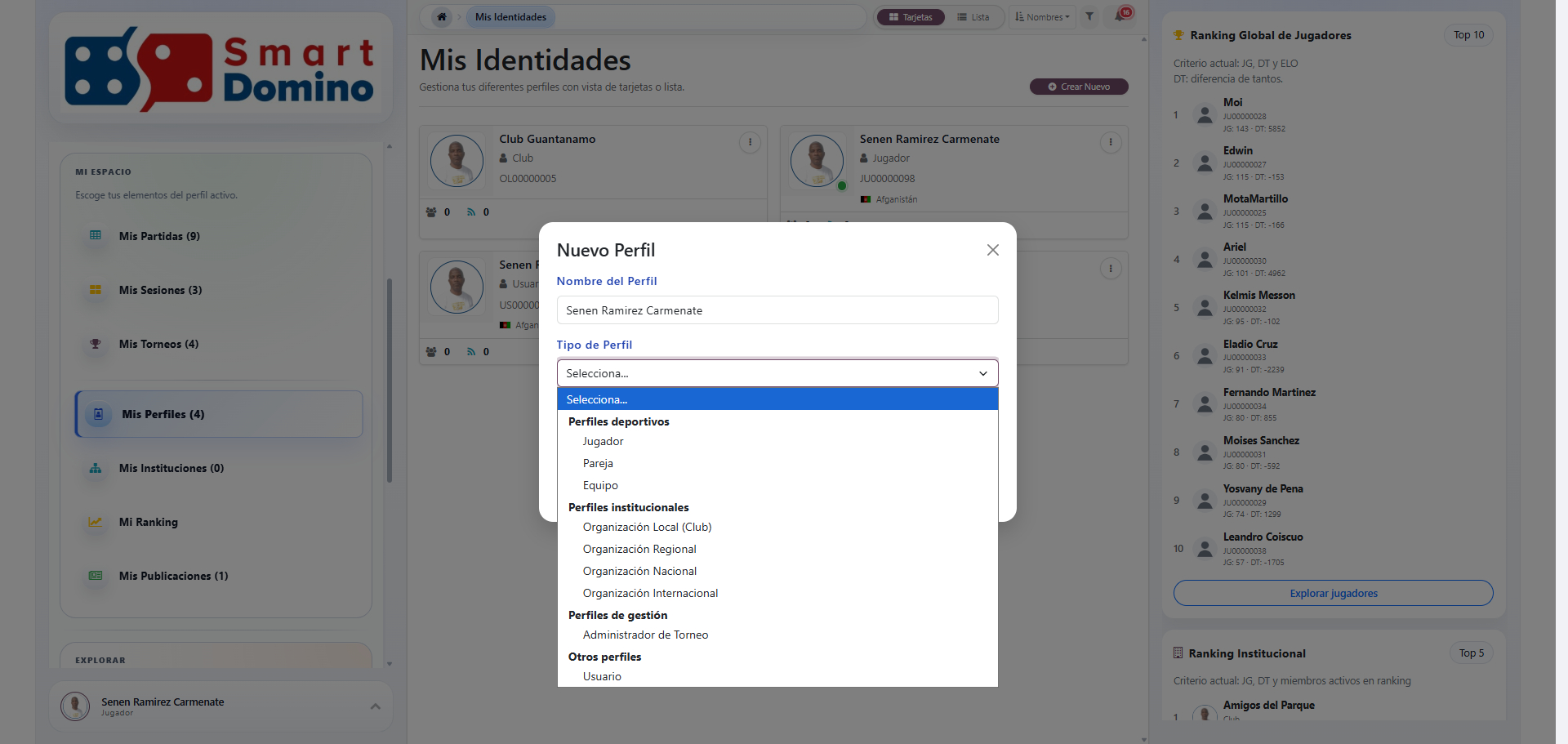
Figure 5. Plans filtered by type
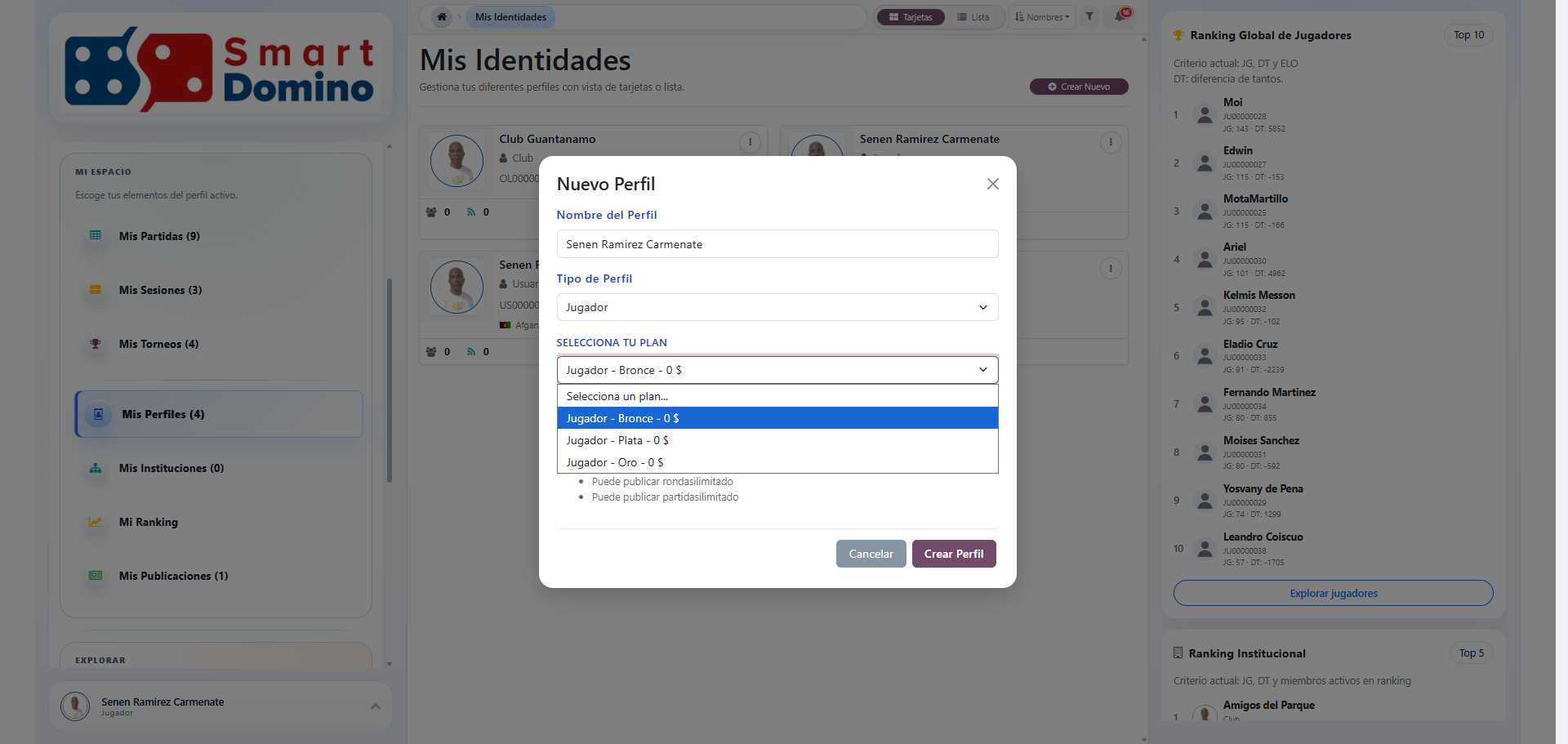
Figure 6. Plan summary
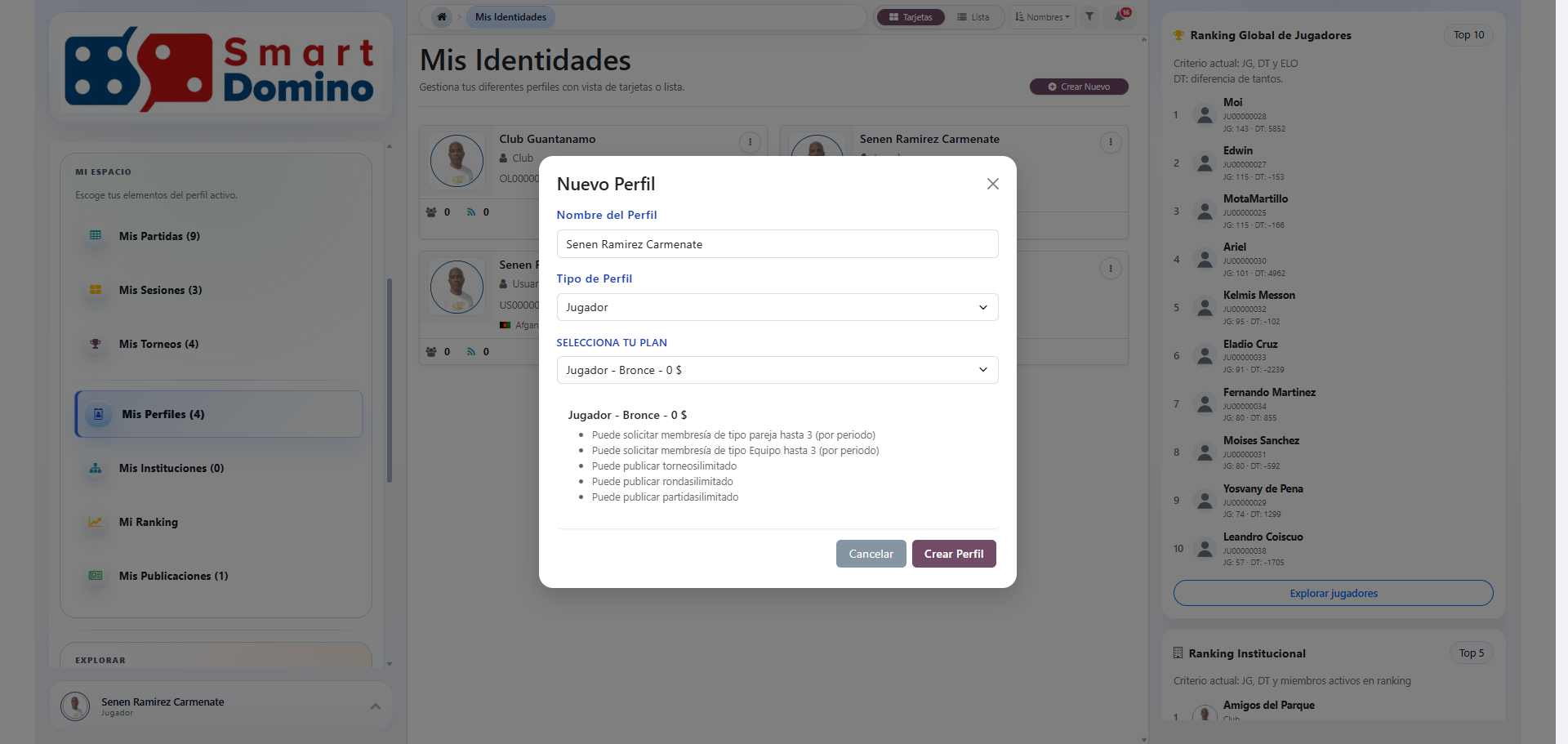
Figure 7. Profile created